
PULSE
TUTORIAL
Test Mode
Turn your phone into a Pulse and wake your PC with your game controller, without any additional hardware.

TUTORIAL
Turn your phone into a Pulse and wake your PC with your game controller, without any additional hardware.
Pulse is a small device that turns your PC on when you pick up your wireless controller. Test Mode lets you try that exact experience using your Android phone as a stand-in for the hardware: the phone listens for your controller's Bluetooth and wakes the PC over your network.
The Android app watches for your saved controller's Bluetooth signal, even with the screen off.
The moment your controller shows up, the phone fires a Wake-on-LAN signal at your sleeping PC.
Grab the pad, press a button, and by the time you sit down the PC is already waking up.
Test Mode is free and takes only a few minutes to set up, but it does lean on a few things. Run through this list once and the rest is smooth sailing.
Your PC has to support Wake-on-LAN, and it must be switched on in two places: the BIOS/UEFI and the network adapter settings in Windows. Most desktops have it; a wired Ethernet connection is by far the most reliable.
The phone listens for Bluetooth. Pads that connect through their own 2.4 GHz USB dongle never appear on the radio, so they cannot trigger the wake.
Leave Karo Pulse running in the background; it minimizes to the tray. It tells the phone the moment the PC goes to sleep, which is what prevents an instant wake-back loop.
The phone and the PC must be on the same home network: phone on Wi-Fi, PC preferably on Ethernet to the same router.
BLE controllers, like 8BitDo or Xbox Series, wake the PC with a single button press. Classic Bluetooth pads, like DualSense, only broadcast in pairing mode, so hold the pairing button instead.
Test Mode wakes a sleeping PC. Powering on a machine that is fully shut down is a job for the real Pulse hardware.
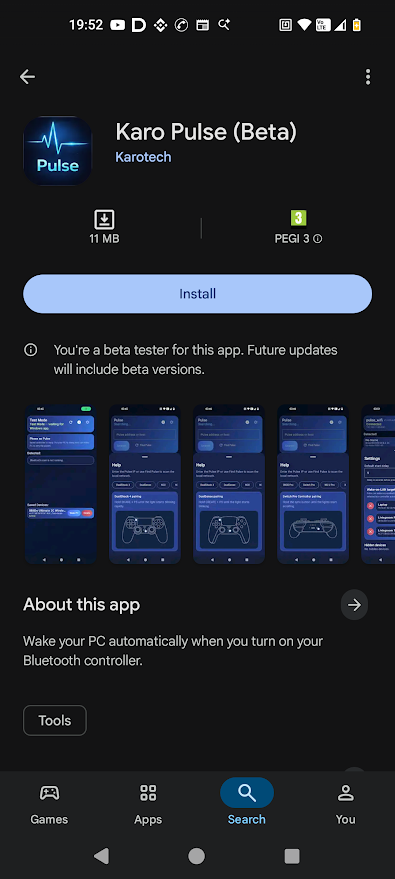
Grab the Windows app from our downloads page and install it on the PC you want to wake. On your phone, install Karo Pulse from Google Play.
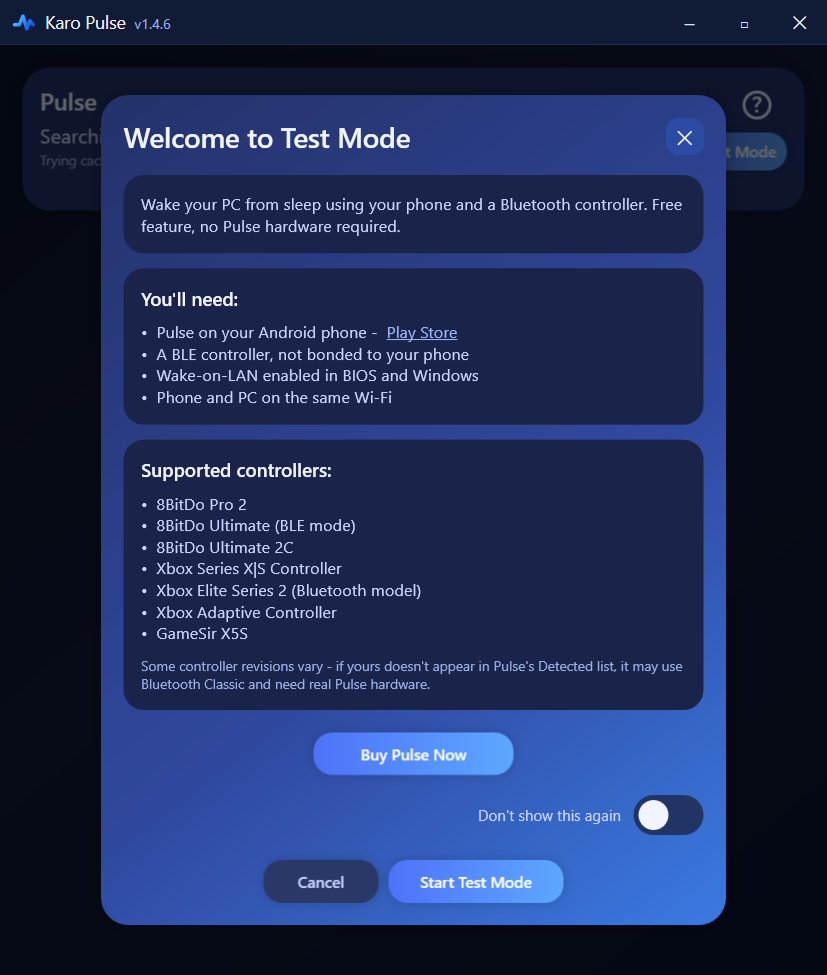
Open Karo Pulse on Windows and click the Test Mode button in the status card, then Start Test Mode in the intro panel. The PC is the driver here: it runs the whole flow and brings your phone along.
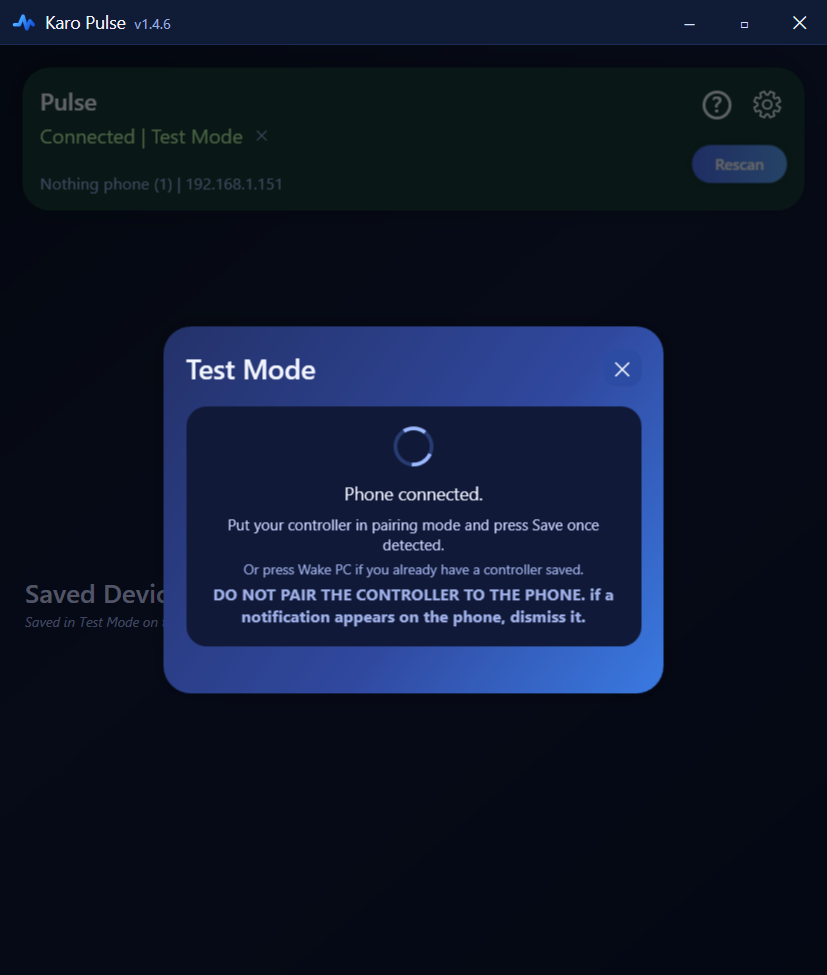
Just open Karo Pulse on the phone, there is nothing to tap. On the same Wi-Fi the two apps find each other in a few seconds: the phone follows the PC into Test Mode on its own, and the PC's status card flips to Connected showing your phone's name.
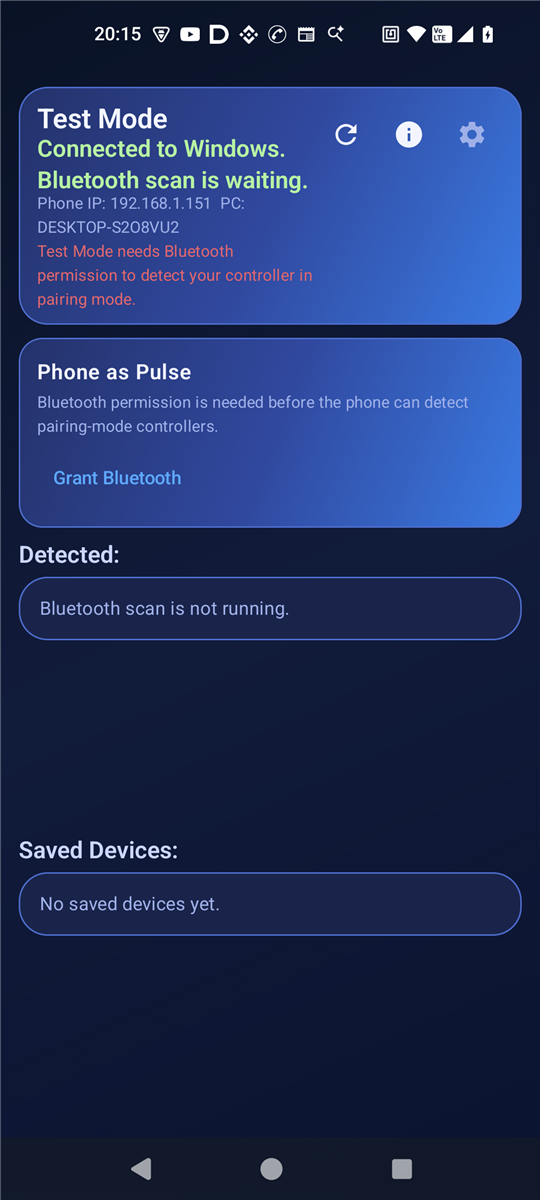
The first time the phone enters Test Mode it needs your OK to scan. Tap Grant Bluetooth on the Phone as Pulse card and choose Allow; approve notifications too if asked. The Bluetooth scan starts the moment permission is given.
Put your controller into pairing mode (hold its pairing button until the light flashes). It pops up in the phone's Detected list; tap Save. The phone arms itself and from now on watches for that exact controller.
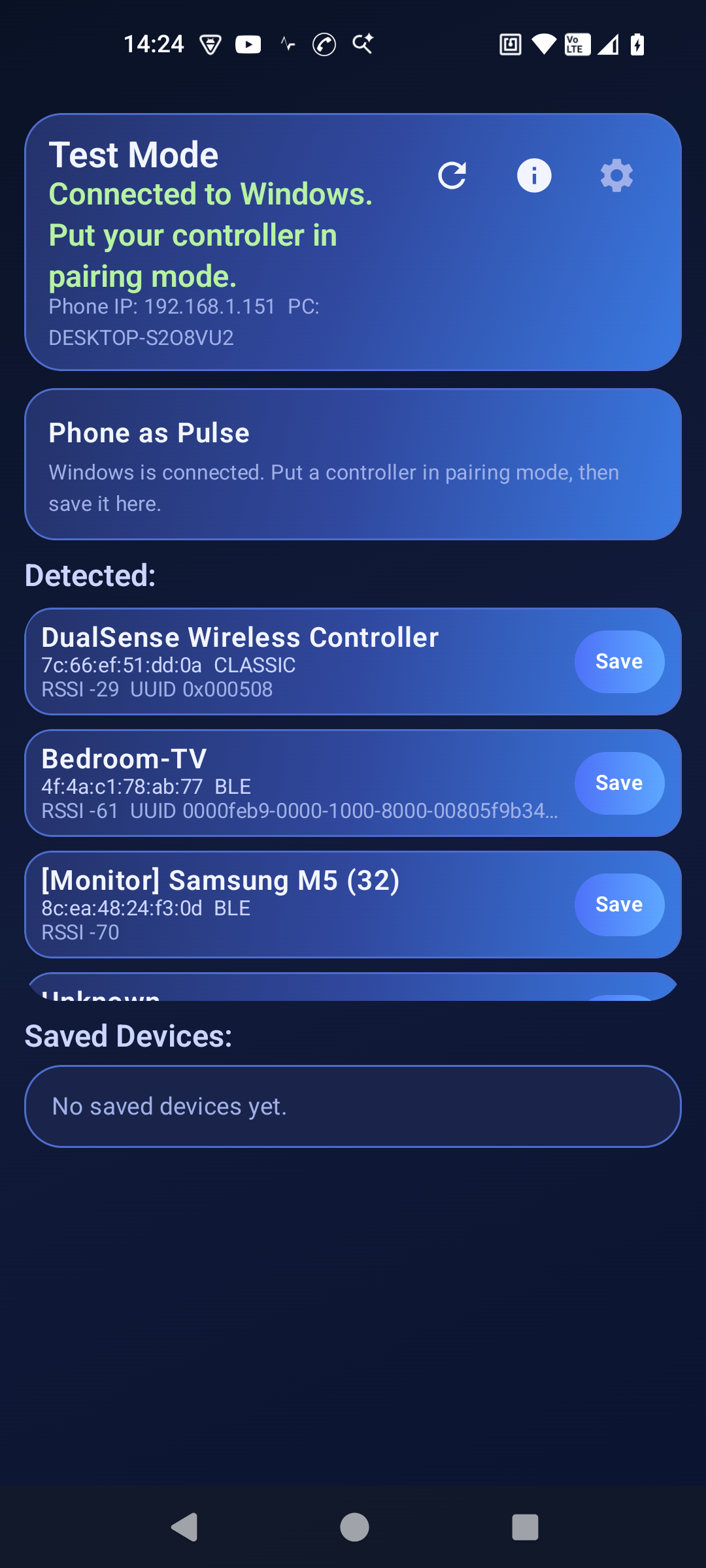
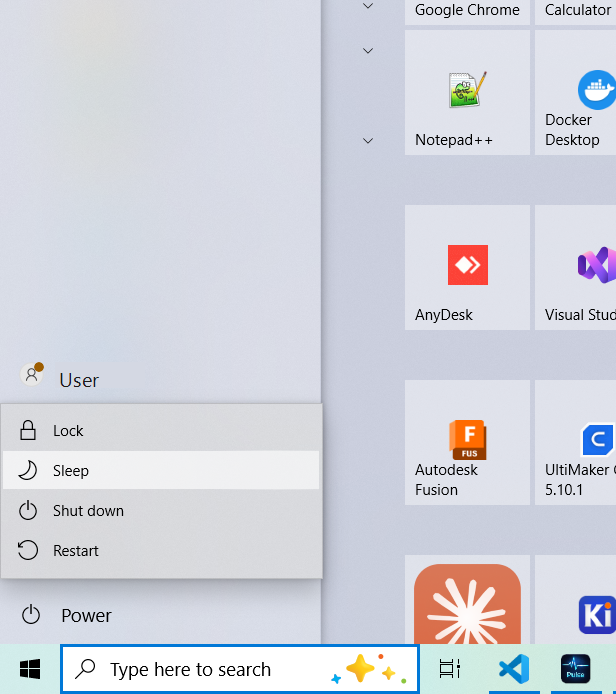
Sleep the PC, wait a 60 seconds (default cooldown time can be changed in controller settings), then wake your controller: BLE pads like 8BitDo and Xbox Series just need a button press; classic pads like DualSense go into pairing mode. The phone spots it, fires the wake signal, and your PC powers up.
Your controller speaks Bluetooth; your PC's network card listens for a special "magic packet" even while the machine sleeps. Test Mode bridges the two: the phone's Bluetooth radio detects the controller and its Wi-Fi sends the magic packet. The real Pulse hardware does the same job standalone, with no phone needed and extra tricks like powering on a fully shut-down PC.
Check that Wake-on-LAN is enabled in your BIOS and in Windows under your network adapter's properties ("Wake on Magic Packet"). Wired connections are the most reliable; Wi-Fi waking works on many laptops but depends on the adapter.
That's what the sleep cooldown prevents: for a short window after sleep, controller wake-ups are ignored so the pairing burst can't bounce the PC awake. You can adjust the window in the saved controller's settings on either app.
Make sure it's really in pairing mode (the light pattern changes) and close to the phone. Some controllers only advertise for a minute or two per attempt; just re-enter pairing mode and watch the list refresh.
No. Once a controller is saved, a small background service keeps watch, screen off included. You'll see a persistent notification while it's armed.
Sign in on either app and the other one signs in automatically the next time both are open on your network. With a real Pulse device claimed, that also unlocks waking your PC from anywhere.
The phone never enters Test Mode on its own, it only follows the PC. Start Test Mode in the Windows app first, keep the phone app open, and make sure both devices are on the same network. Guest networks and routers with AP or client isolation stop devices from seeing each other, so use your main home network for both.
This is almost always a network split: the phone is on a guest network, on mobile data, or on a band with client isolation turned on. Put both devices on the same home network first. If they already are, allow Karo Pulse through the Windows Firewall for private networks, then turn Test Mode off and on to retry the link.
Both apps are free. Ten minutes from now your controller can be your power button.
Love it? The real Pulse hardware does this standalone, even from full shutdown. Meet Pulse.
 Windows app
 Android app
 Controller