AURORA DASHBOARD PLUGIN
A-Z
Aurora A-Z
An alphabet selector for the Xbox 360 coverflow. Hold the right stick, pick a letter, release. One file, no skin changes.
Aurora 0.7b.2 Rev1655Single XEXBrowse or Filter

An alphabet selector for the Xbox 360 coverflow. Hold the right stick, pick a letter, release. One file, no skin changes.
Aurora has no way to jump to a letter from the coverflow. Aurora A-Z adds one. It draws its own selector over the active skin and acts on Aurora's existing list.
Hidden during normal coverflow use. Visible only while R3 is held.
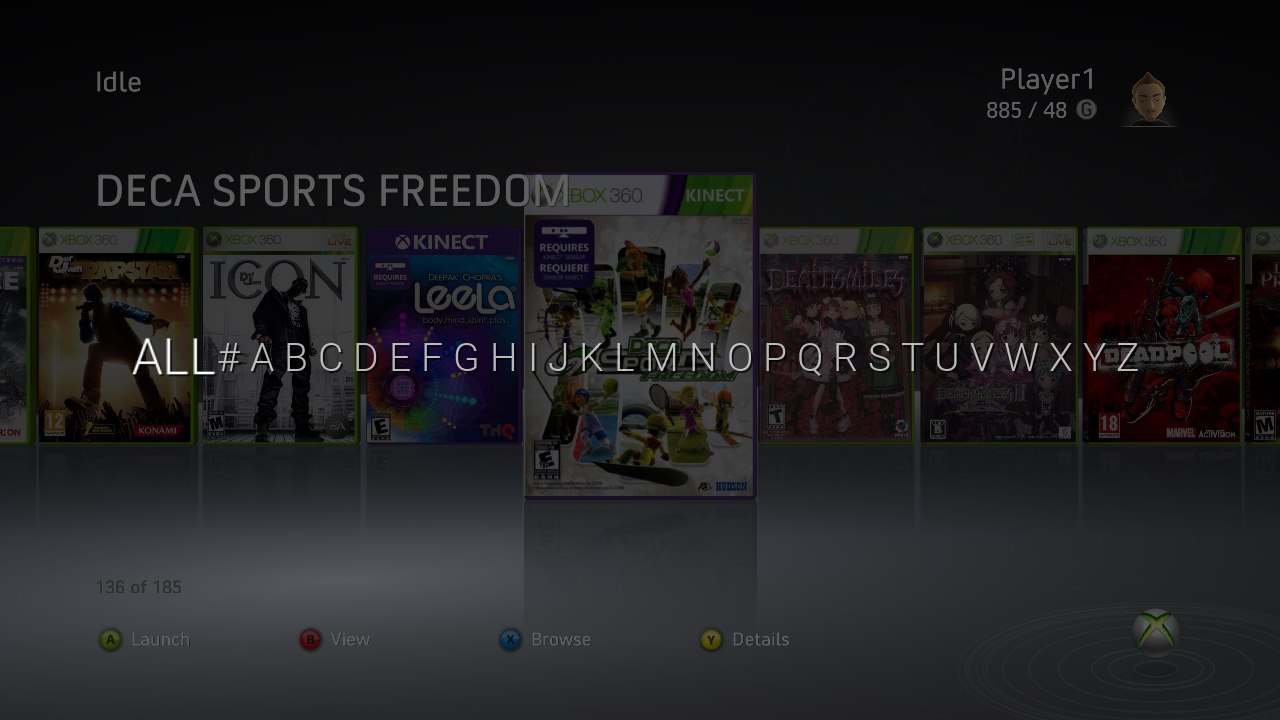
On hardware, stock Default skin, R3 held.
Left and Right move the highlight; hold to repeat. Navigation wraps at both ends.
Hold R3 and click L3 to switch and save the mode. Browse Mode or Filter Mode appears bottom-right for five seconds, even after releasing R3. Switching again restarts the timer.
Jumps to the first title in the letter group. The list is not rebuilt.
Rebuilds the coverflow to show only that letter group.
ALL appears only in Filter mode and clears the letter only; the active QuickView stays. # matches digits, punctuation and empty names.
Install directly from Aurora's Scripts menu.
New in v1.1: the installer detects Aurora's location from its script folder, including alternate HDD folders and USB installations. Use the User\Scripts\Utility\ folder inside your actual Aurora installation.
The plugin binary is unchanged from v1.0. The installer passed 13 mocked tests; on-console verification of this fix is still pending.
User\Scripts\Utility\AuroraAZInstaller\
  Main.lua       <- installer script
  AuroraAZ.xex   <- plugin payload
  icon.png       <- script menu icon
The script stages the plugin, renames any existing NetDbgDll.xex to an unused backup name, and installs the new file. No launch.ini or skin changes. It does not restart the console automatically.
Aurora A-Z and the Network Debugger cannot run together. The installer preserves existing files as NetDbgDll.xex.before-aurora-az (numbered if needed). Experimental DashLaunch installers are not supported with v1.1.
Download the standalone AuroraAZ.xex, back up any existing NetDbgDll.xex, then copy the payload as Aurora\Plugins\NetDbgDll.xex and reboot.
While holding R3, click L3 to switch mode. A and RB keep their normal Aurora functions.
Delete or rename Aurora\Plugins\NetDbgDll.xex then restore any original debugger file you backed up and reboot the console. The only other file the plugin may create is a small settings file under Data holding the selected mode.
Check the Aurora revision, that the file is at Plugins\NetDbgDll.xex spelled exactly, and that Aurora was restarted. The selector opens from the coverflow only, not from inside a menu.
The row and highlight are drawn by the plugin, not taken from the skin. Use R3+L3 to change mode; the old module radio UI and icon remain unfinished. Behavior is identical on the Default skin and third-party skins, and switching skins needs no reinstall.
Not supported. Move NetDbgDll.xex aside to run Aurora A-Z, and restore it to go back.
Browse does not rebuild the list and stays immediate past 2,000 titles. Filter rebuilds the coverflow and costs the same as any other Aurora filter.
By design. ALL clears the letter and nothing else. For the global list, use Aurora's own QuickView menu on RB; the plugin never changes the QuickView.
The build is verified before hooking and fails closed on a mismatch, nothing is written to Skins or Aurora.xex, and uninstalling is one file deletion. The unchanged v1.0 plugin binary is hardware-tested; keep FTP or USB access available for recovery.
Download v1.1 with the Aurora Script-menu installer, plugin and icon. No launch.ini or skin changes.
AuroraAZ-v1.1-Installer.zip
Built for homebrew-capable Xbox 360 consoles running Aurora 0.7b.2 Rev1655. Keep a way to remove files from the console before installing.
Aurora is by the Phoenix team and is not affiliated with this plugin.